
如何减小模型文件的大小
有多种方法可以减小 COMSOL Multiphysics® 模型文件的大小,本文将概述几种方法及其操作步骤。
更新首选项
COMSOL Multiphysics® 保存的文件通常有压缩或不压缩的两种状态,您可以在 文件菜单>首选项 下通过更新首选项设置来任意切换这两个选项。
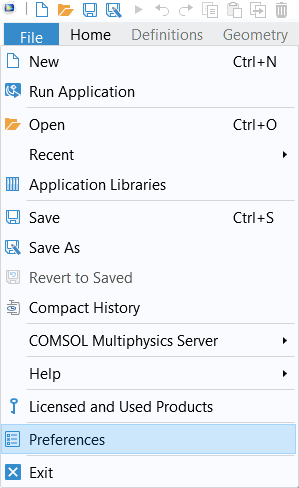
通过 文件 菜单访问首选项。
在 首选项>保存 选项卡,您可以将 优化 MPH 文件 设置更改为文件大小,之后的所有后续保存操作都将压缩文件。这不是首选项中的默认设置,因为压缩文件通常会使保存操作花费更多时间。
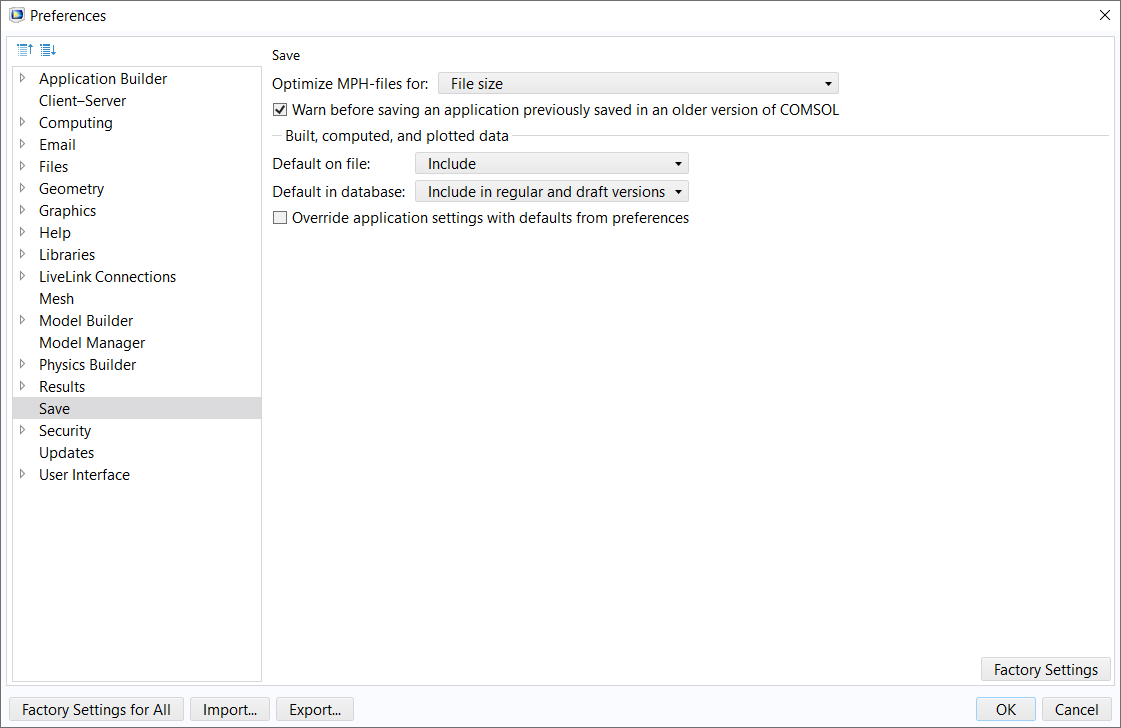
首选项 窗口,其中的选项已更新为建议的设置,以便在保存时减小模型文件大小。
在 COMSOL Multiphysics 早期的版本中,您可以在 文件 下找到此设置,并在 保存 COMSOL App 文件 设置栏中,将 优化 下拉菜单选项更改为 文件大小。
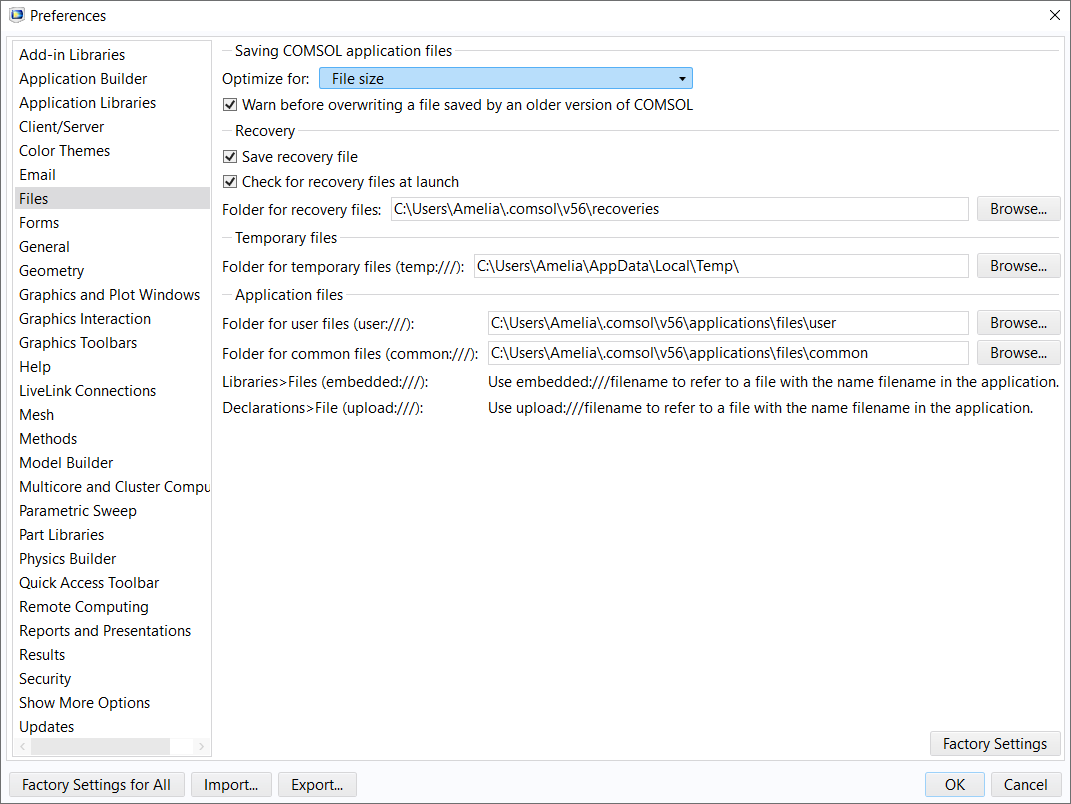
COMSOL Multiphysics 早期版本的 首选项 窗口,您可以在此更新已保存模型文件的设置。
清除网格和解
如果您不需要保留模型的计算结果,而只想保存未求解的模型,可以使用 网格 功能区选项卡中的 清除构建的网格 按钮,或右键单击 模型开发器 窗口中的 网格 节点并选择 清除构建的网格,就能删除网格数据并保留构建网格的相关信息。
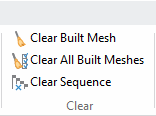
网格功能区选项卡中的 清除构建的网格 按钮。
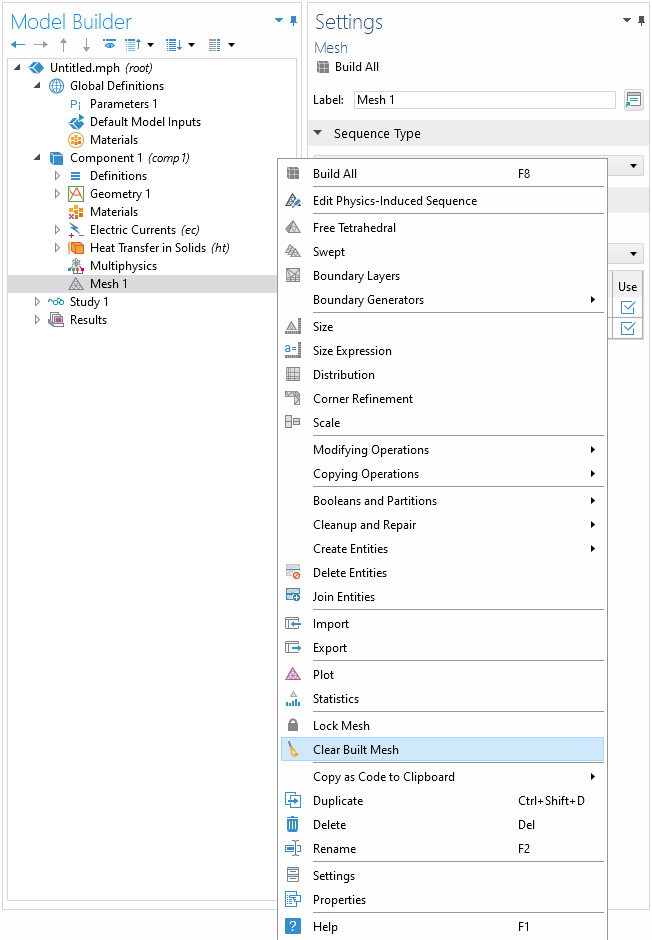
右键单击 网格 节点可使用 清除构建的网格 功能。
同样,您也可以使用 研究 功能区选项卡中的 清除解 按钮,或右键单击 研究 节点并选择 清除解。这样可以删除模型的求解数据,但会保留求解器中关于如何计算求解的信息。重新求解模型时将重新构建相同的网格和求解数据。

研究功能区选项卡中的 清除解 按钮。
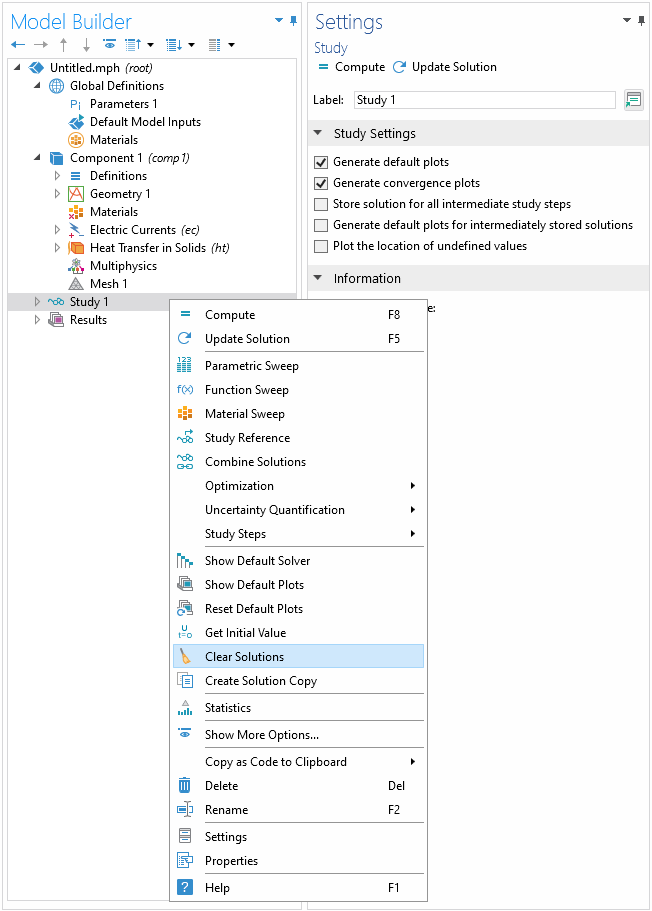
通过右键单击 研究 节点可访问 清除 功能。
减少求解数据量
当生成大量解数据时,文件会变得很大。因此,您也可以考虑减少模型中包含的解数据。如果您想在模型中保留部分而非全部解数据,请参阅学习中心中关于 减少模型中存储的解数据量 的文章。您可以按照文章中提供的操作步骤进行设置,以减小 COMSOL Multiphysics® 模型文件的大小。
请提交与此页面相关的反馈,或点击此处联系技术支持。


