
手动设置几何多重网格求解器
概述
几何多重网格(GMG)求解器通过在一系列网格而不是在单一网格上求解有限元问题,加快了迭代求解器的收敛速度。多重网格算法将从初始的物理场控制网格或用户定义网格开始,自动创建一系列更粗的网格。
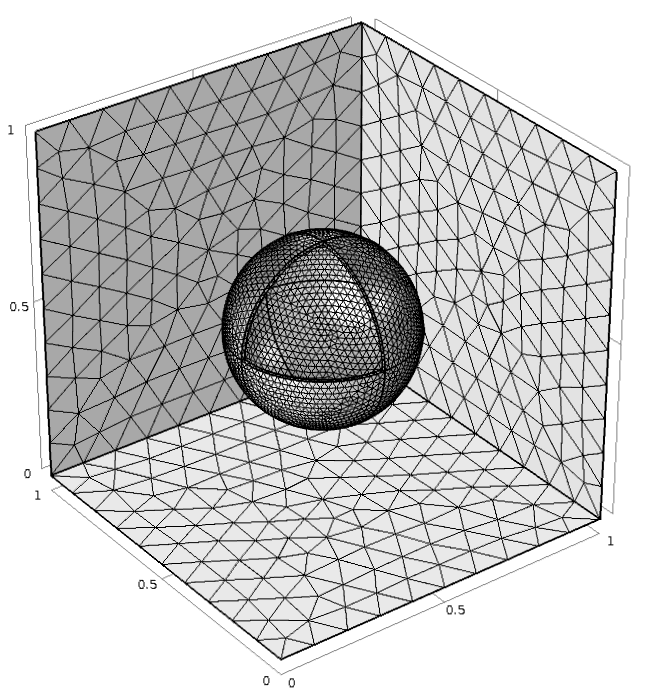 A model of a meshed sphere inside a cube-shaped modeling domain.
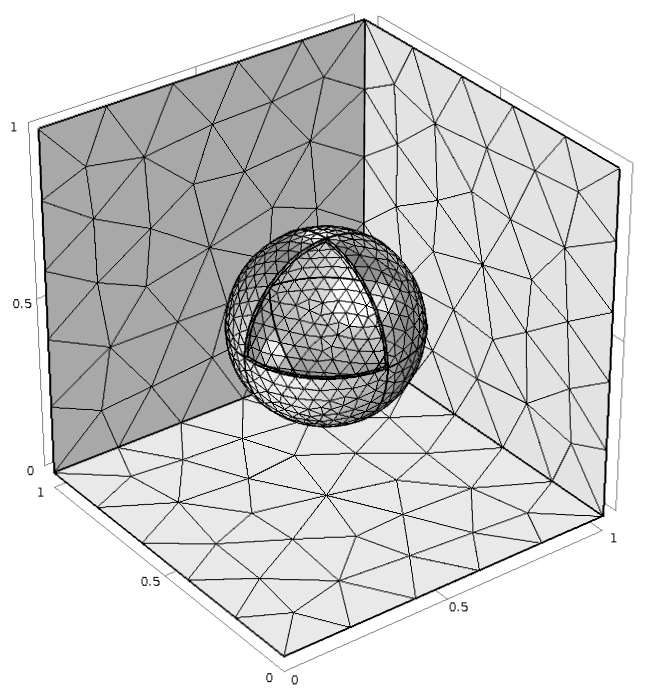 A model of a sphere in a cubic modeling domain with a coarse mesh.
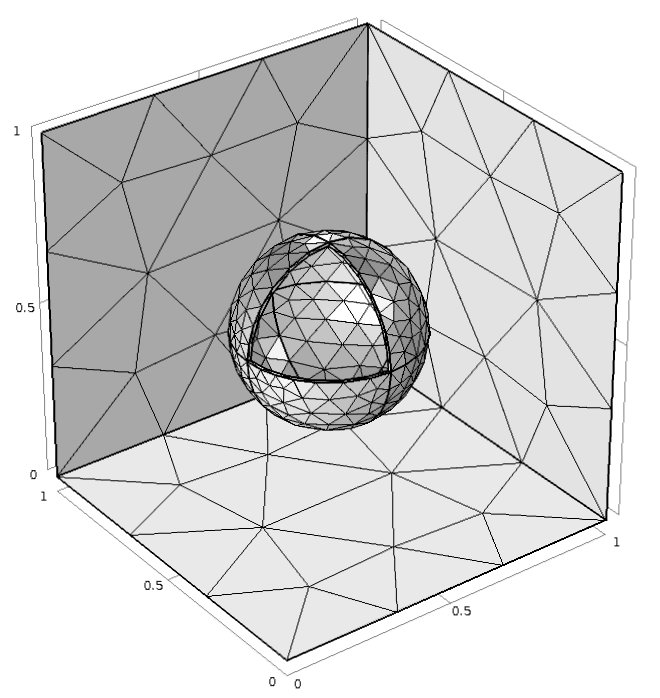 A model of a sphere inside a cube-shaped modeling domain, meshed with a coarse setting.
每个添加网格的粗糙度大约是前一个网格的两倍,网格总数取决于模型的大小。求解器会自动创建多重网格,直到最粗网格的自由度低到可以用直接求解器计算为止。
在创建多重网格时,最粗糙网格的大小可能会大于模型中最小几何特征的尺寸,这种情况通常发生在模型的几何结构包含高纵横比的小特征或小部件时。我们可以使用一些方法来解决这个问题,接下下来我们将对此进行讨论。
求解包含复杂几何特征的模型
使用迭代多重网格求解器计算包含复杂几何特征的大型模型时,可以采用不同的策略。我们以下图中的几何模型为例来加以说明。
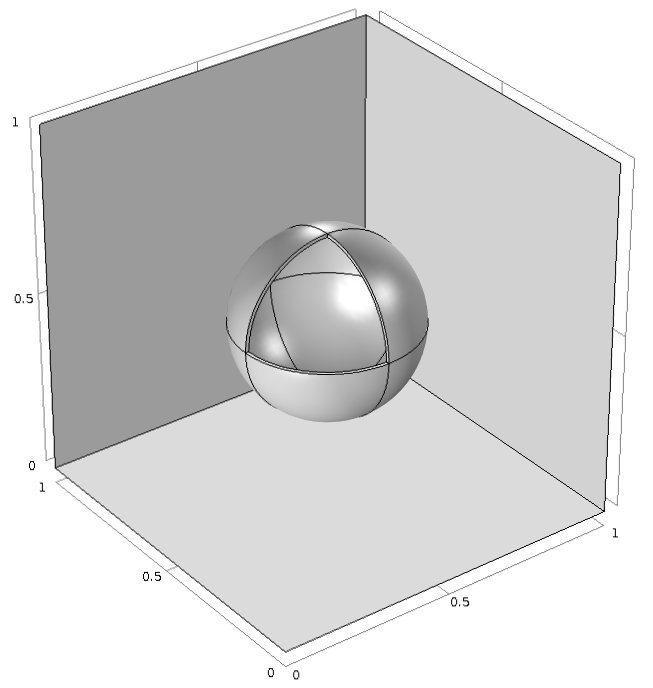
一个模型几何体示例,展示了几何多重网格求解器的手动设置。该几何体由一个包含球体的立方体组成,球体的最外层为薄层。
这个立方体由第一种材料制成,包含的球体由第二种材料制成。球体表面有一层由第三种材料制成的薄涂层,其厚度远小于球体的大小,将导致多重网格求解器求解失败。不过,无论你求解的几何体以及其中包含的几何特征是哪种类型,我们都有办法求解这个问题,并继续使用几何多重网格求解器。
方法 1:将求解失败的多重网格替换为用户定义网格
与其让网格求解器从初始网格开始自动创建更粗的网格,不如手动创建网格,并使用这种用户定义网格序列替换求解失败的网格,我们可以在多重网格求解器设置中选择这些网格。本文讨论的求解模型所需的多重网格层数可以在下图中的 多重网格 1 节点的 设置 窗口中看到。
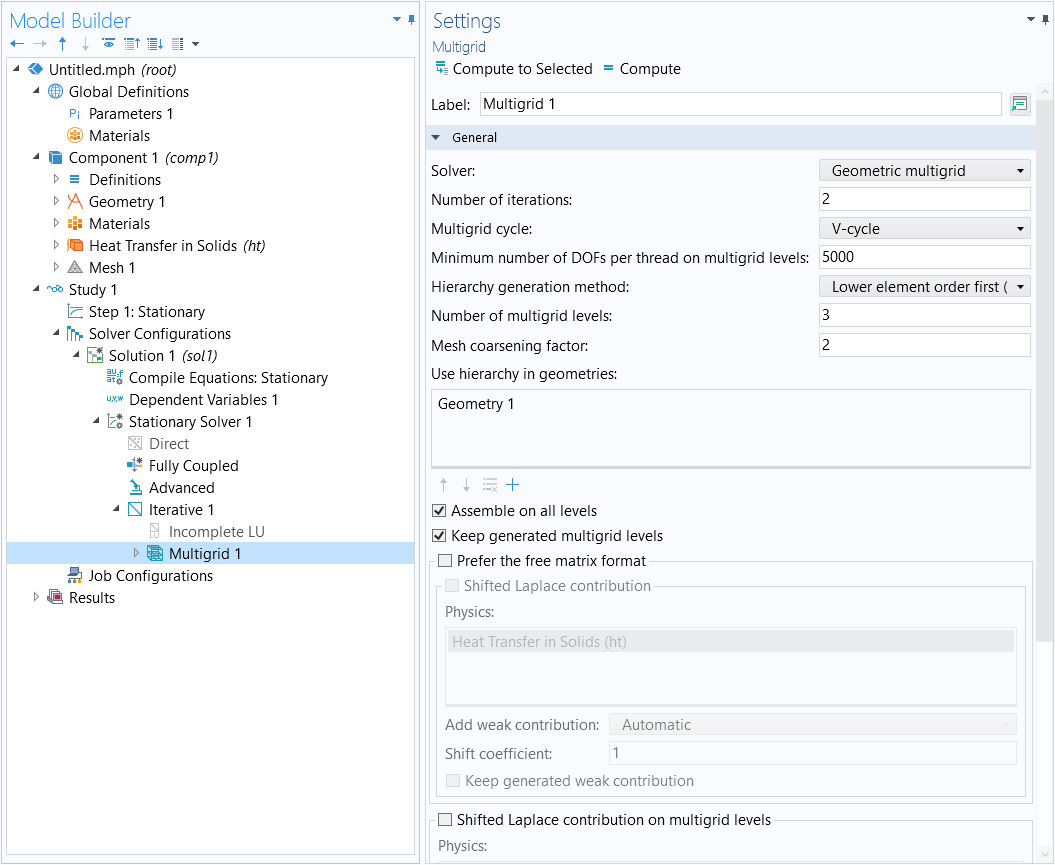
使用多重网格求解器节点设置几何多重网格求解器。
在这个示例中,如 多重网格层数 方框所示,需要三个额外的网格。单击 计算 按钮后,求解器返回错误信息:“设置多重网格时出现问题”。为了直观显示多重网格并查看有多少网格求解失败,我们可以在 多重网格 1 节点(如上图所示)的设置中选择 保留生成的多重网格层 复选框。重新计算求解后,多重网格层将作为子特征添加到研究步骤节点 步骤 1:稳态 中。
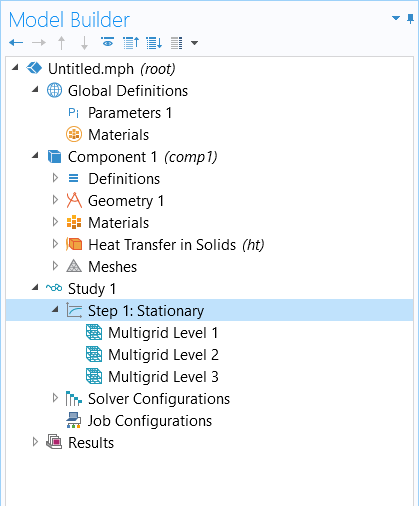
重新求解模型后,在 稳态 研究步骤下添加的多重网格层。
如果无法看到研究步骤节点下填充的多重网格层,可能需要切换到软件中的高级研究选项。您可以使用 模型开发器 工具栏中的 显示 按钮,并勾选 研究 类别下的 多重网格层 复选框查看这些节点。
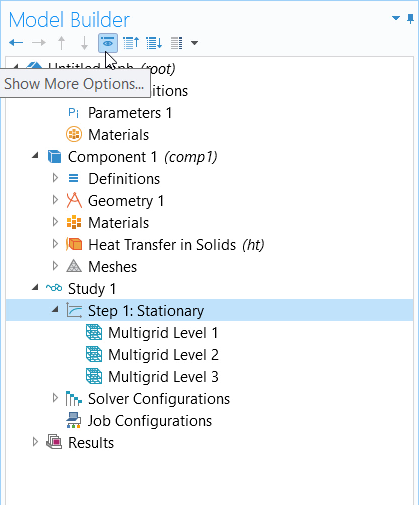 A screenshot of the Model Builder ribbon and model tree, with the Show More Options button highlighted.
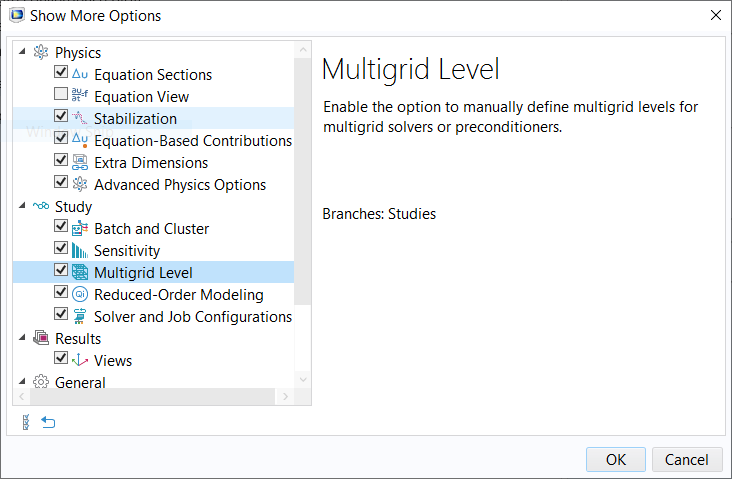 A screenshot of the Show More Options dialog box with the Multigrid Level option highlighted.
相应的粗糙网格将出现在模型树中。网格 1 是原始网格,网格 2 ~ 4 分别代表多网格层数 1 ~ 3。从下面的屏幕截图中可以看出,网格 4 无法划分的原因是太过粗糙,无法离散几何体。
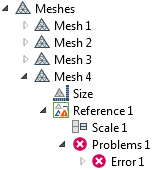 A screenshot of the model tree, showing an example of a mesh failure.
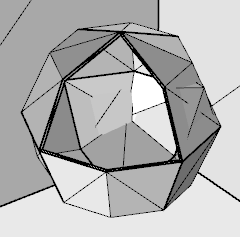 A meshed sphere in which an error occurs where layers intersect each other.
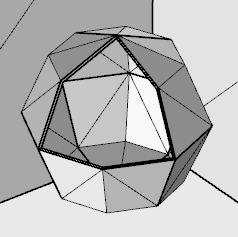 A sphere that has been meshed with a swept, structured mesh, avoiding errors.
我们可以采用以下任意一种方法来修复 网格 4:
- 使用精细网格或扫掠网格手动创建 网格 4 的网格序列
- 添加一个新的粗糙网格(网格 5),并将 多重网格层 3 中的设置从 网格 4 更改为 网格 5
- 删除 步骤 1:稳态 下的最粗糙网格(网格 4)和相应的 多重网格层 3 节点,以减少多重网格层数
注:您需要将多重网格求解器的 层次结构生成方法 切换为 手动,以选择要考虑的多重网格层数。如果选中 保留生成的多重网格层,并且在设置多重网格层时没有问题,则 层次结构生成方法 将自动切换为 手动。
方法 2:手动创建所有多重网格层
我们可以使用由用户定义的网格划分序列手动创建每个多重网格层的网格,其中每一个后续网格的粗糙度应大约是前一个网格的两倍。将初始网格设置为 步骤 1:稳态 中的 网格 1,并将添加的网格设置为 步骤 1:稳态 中多重网格层的子特征(例如,多重网格层 1 和 3 应分别设置为 网格 2 和 4)。
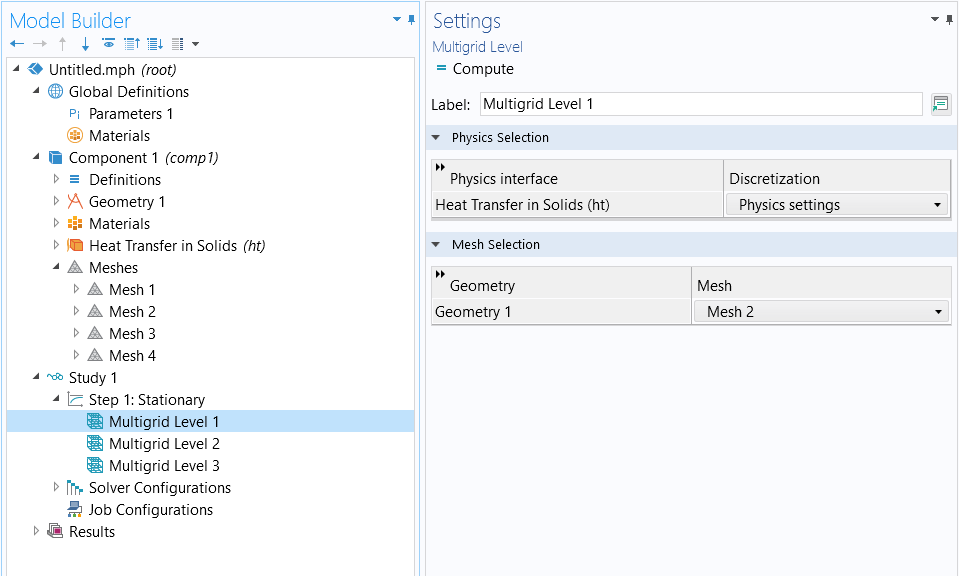
多重网格层节点的设置窗口,在此可指定要使用的几何体和网格选择。
如果多重网格层的功能不可用,如前文所述,请激活 模型开发器 工具栏上 显示 按钮中的高级研究选项。最后,在求解器设置中,我们要将 层次结构生成方法 更改为手动。切换到 手动 后,您将看到 设置 窗口有相应的更新。
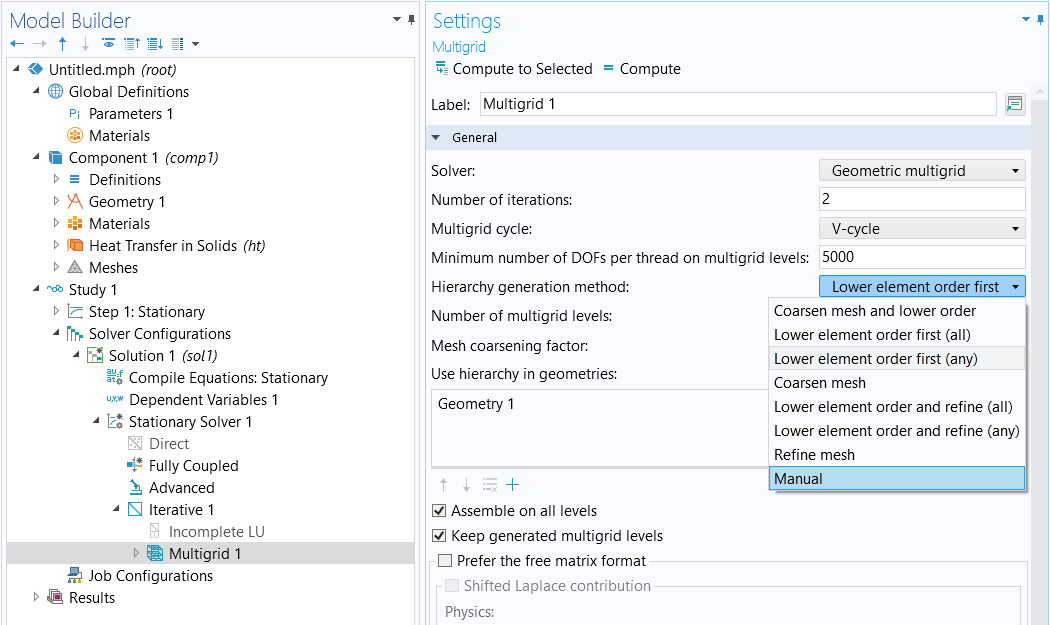 A screenshot of the multigrid solver settings when set to the default options.
 A screenshot of the multigrid solver settings after being set to the Manual option.
COMSOL 案例库中有一些使用几何多重网格求解器的示例,例如,软件案例库(结构力学模块 > 教程)或 案例下载 中的“轮辋子模型”。
请提交与此页面相关的反馈,或点击此处联系技术支持。


