问题描述
I am experiencing graphics issues in COMSOL Multiphysics, what can I do about it?
解决方法
This entry is meant as listing general strategies when experiencing graphics issues in COMSOL Multiphysics.
More problem-specific fixes can be found in the following entries
Graphical Glitches in the User Interface on Gaming Computers
Graphics Window not responding on computer with Intel Iris Xe graphics chip
A general approach for graphics issues.
By default, COMSOL Multiphysics uses hardware accelerated rendering (OpenGL) for showing geometry, mesh and visualization of plots. Hardware rendering requires drivers that support OpenGL® version 2.1 or later.
The first time COMSOL Multiphysics is started it will detect if the graphics card supports the necessary features. If not, it will try to fall back to use a built-in software rendering, which usually works OK but is much slower and less smooth than hardware rendering. If it does not succeed in automatically changing the rendering, you have to do it manually.
Change the rendering
The quickest solution is to switch to software rendering:
Start COMSOL Multiphysics.
To open the Preferences dialog box, in the COMSOL Desktop:
Windows users: From the File menu, select Preferences.
Mac and Linux users: From the main menu select Options>Preferences.
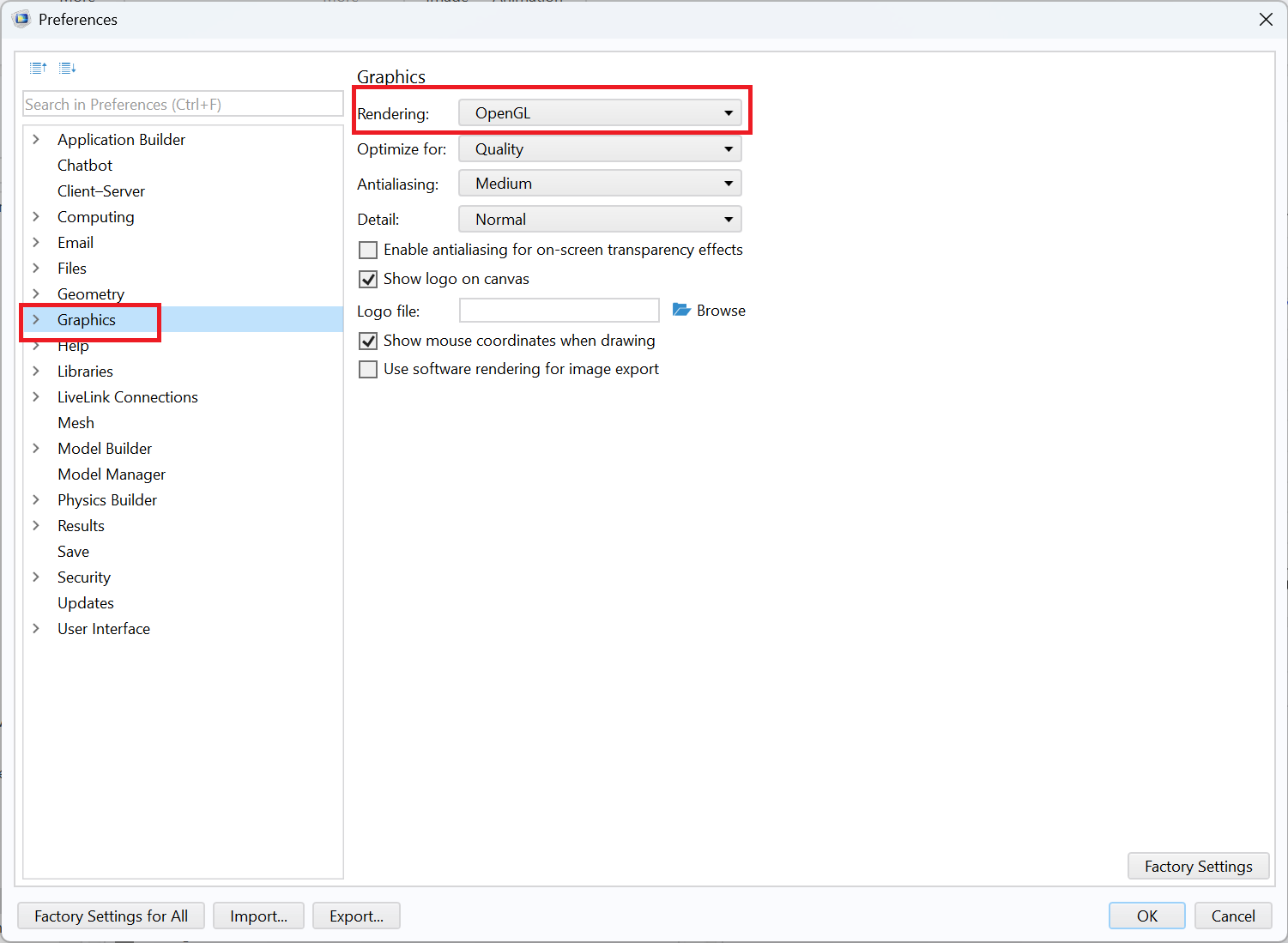
In the Preferences window select Graphics and set the Rendering option to Software.
Click OK and close the COMSOL Desktop.

You can also force COMSOL Multiphysics to use a certain renderer by using an option to the command used to start:
comsol -3drend ogl (start with OpenGL rendering)
comsol -3drend sw (start with software rendering)
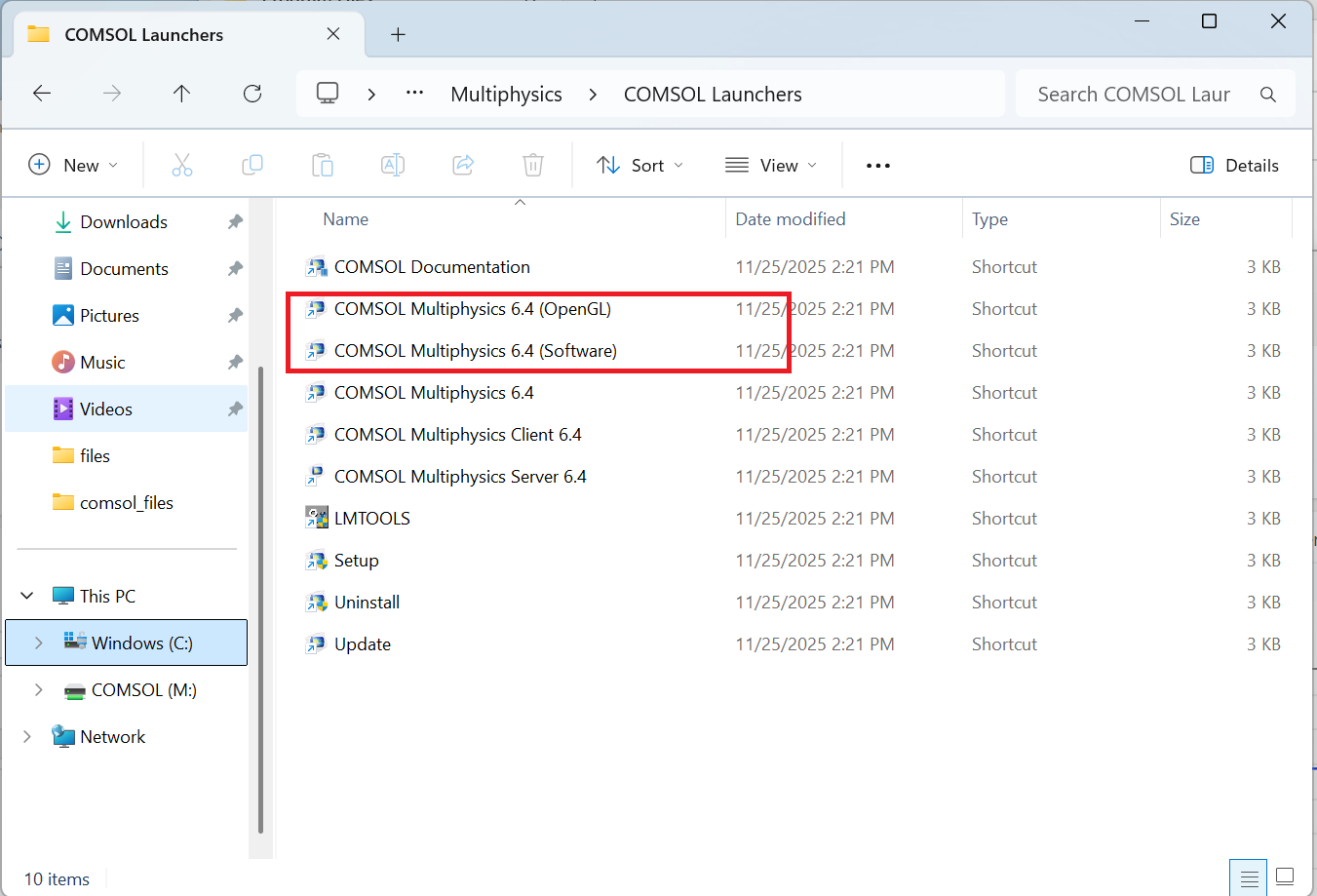
On a Windows machine, you can select which rendering you want to use from the COMSOL Launchers directory, which is available from the Start Menu:

For versions older than COMSOL Multiphysics 6.2, you can also select to use DirectX renderer.
Change the optimization
While COMSOL Multiphysics works fine with Software rendering, it can get a bit choppy for complex geometries. And, in order to make use of all the improved graphics functionality in the later version of COMSOL Multiphysics, you would need to use hardware rendering.
To use all rendering features available when Optimize for Quality is set in the Graphics preferences, graphics memory of 2 GB or more is recommended.
If you experience problems running COMSOL Multiphysics with OpenGL rendering, it can be worth changing the Optimize for setting in the Graphics part of the Preferences dialog (see image of the preferences dialog above). Changing that setting from Quality to Performance can make a difference.
Update your graphics drivers
The drivers for a graphics card often evolve and get enhanced after the initial release of the card so if you have graphics problems, we recommend that you download and install the latest driver for your graphics card, from the manufacturer's homepage. If you are using an AMD graphics card, make sure to select the Pro version of the graphics drivers rather than the All-Open version.
Crashes while solving
If you experience crashes while solving, these could be caused by plots created while solving. In that case, try disabling plots while solving (from the solver sequence) and the generation of convergence plots (from the study node).
COMSOL 尽一切合理的努力验证您在此页面上查看的信息。本页面提供的资源和文档仅供参考,COMSOL 对其有效性不作任何明示或暗示的声明。COMSOL 对所披露数据的准确性不承担任何法律责任。本文档中引用的任何商标均为其各自所有者的财产。有关完整的商标详细信息,请参阅产品手册。