
How to Search for Relevant Modeling Examples
To find COMSOL® models and applications with specific features and modeling techniques, there are various resources you can use on the COMSOL® website and within the software itself. On the website, you can use the Application Gallery; in the software, you can find resources via the Application Libraries and the Model Manager Demo Database; and on the COMSOL® website as well as within the software you can find our extensive COMSOL® documentation. In this article, you will learn about search techniques tailored for each platform to help you navigate your search and identify relevant model files for your application area.
Searching the Application Gallery
The Application Gallery contains a plethora of entries, including tutorial models, demo apps, and other models. These entries may include modeling instructions, slidedecks, or other materials. All of the model and application files in the Application Gallery are freely available for download. To access the Application Gallery, go to comsol.com/models or navigate to the footer menu at the bottom of any COMSOL webpage and select "Model and Application Files" under the "Use Cases" section.
Once you have navigated to the Application Gallery, you will see the "Quick Search" sidebar on the left side of the page. This tool enables you to search by keywords, discipline, and product. The keyword search indexes the title, description, and filename of each entry. Enter a keyword in the search bar, and then select the discipline and product filters to narrow your search to relevant model files. For example, if you are interested in finding a frequency-domain analysis performed on speakers, enter "frequency-domain analysis" in the search bar located under the "Quick Search" sidebar and choose the "Structural & Acoustics" discipline. Once you have entered your search and have selected a specific discipline, the “Filter by Product” field will automatically condense the product options to what is relevant for the chosen discipline, even before you click the “Filter” button. From there, you can choose to filter the search as is or adjust the product filter to a specific product from the adjusted list of options. For this example, the "Acoustics Module" has been selected in the product filter.
 User interface screenshot for a model demonstrating a frequency domain analysis in the Application Gallery.
 Loudspeaker Driver — Frequency-Domain Analysis Application Gallery model page.
Application Gallery search for a frequency-domain analysis of a loudspeaker with specified filters (left). One of the results was the Loudspeaker Driver entry (right).
Each entry contains a brief description of the model demonstration that describes features shown in the simulation, analyses performed, and module(s) used to conduct the study. This information can be used to help you determine if the Application Gallery entry you have selected aligns with your intended query.
Note that before downloading files from the Application Gallery, you must ensure that you have selected the correct version of the COMSOL Multiphysics® software you have installed to optimize your experience viewing and computing the file.
Each entry in the Application Gallery also includes an Application ID, which you can find below the title of the application. This ID number can be used to search for the specific model in the Application Libraries window within the software.
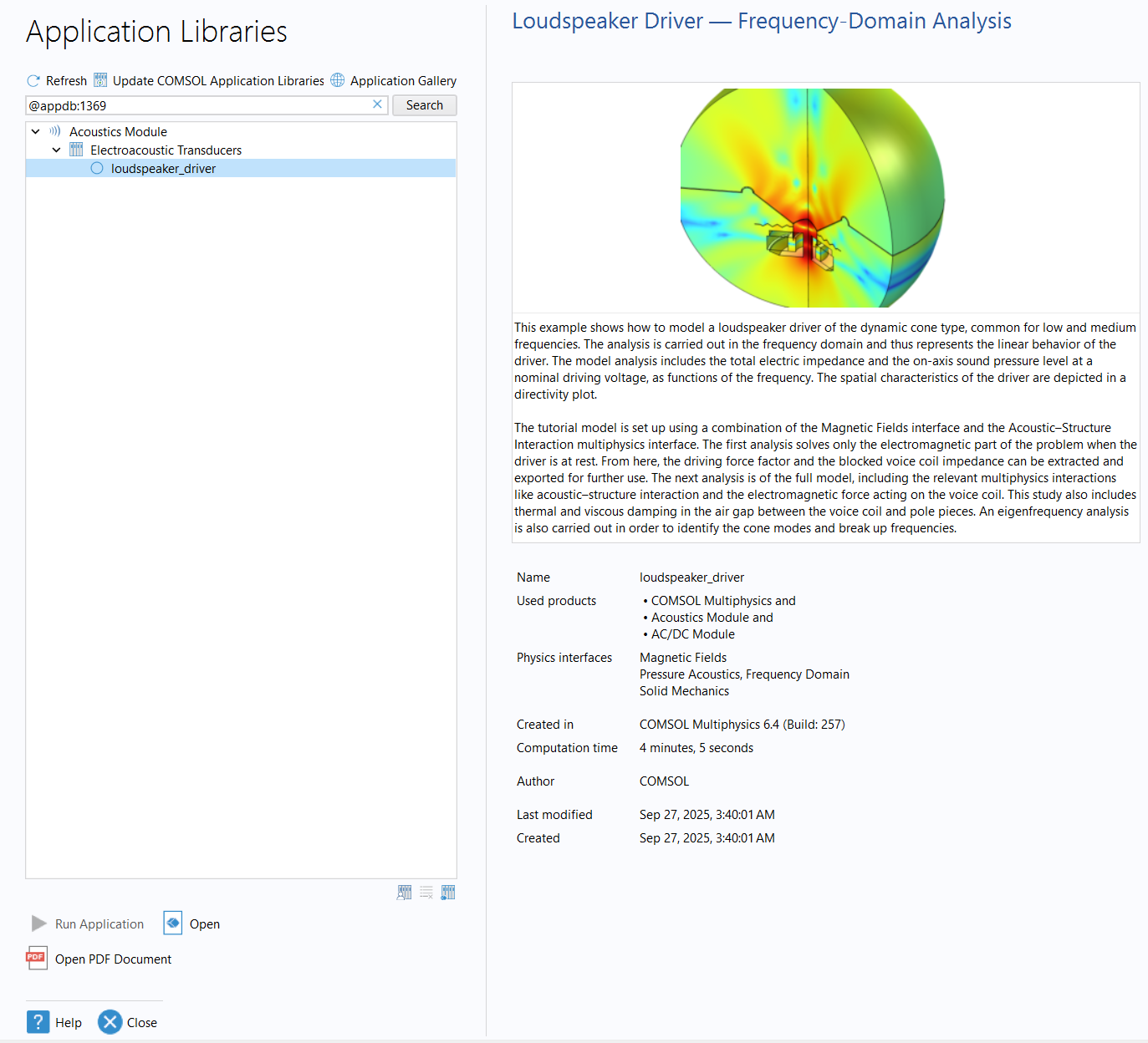
Searching for an Application ID in the Application Libraries for the Loudspeaker Driver model.
Searching the Application Libraries
Found within COMSOL Multiphysics® is the Application Libraries window, which provides access to models and applications that enable you to quickly start simulating in the software. The files include solved and compact models that demonstrate a range of features, functions, and physics and/or multiphysics couplings. Note the difference between these files:
- Solved files: contain fully functional physics models that include the definitions, geometry, built meshes, and complete solutions
- Compact files: contain definitions and geometry but do not contain the mesh and solutions in order to save disk space
To obtain the solved model from a compact file, you need to build the mesh and compute the study. However, the easiest way to obtain the solved version of a compact (or preview) file is to right-click its node and choose Download File with Solutions. The circle located to the left of the filename serves as an indicator for the file type, with a filled-in blue circle representing a solved file, a blue circle outline for a compact file, and a gray circle for a preview file.
To access the Application Libraries on Windows®, go to the File menu and select Application Libraries or via the Home ribbon tab > Windows > Application Libraries. On Linux® or macOS you can access the Application Libraries through the Windows menu on Linux® or the File menu on macOS and select Application Libraries.
 The File menu expanded with the Application Libraries option highlighted on a Windows UI.
 The File menu expanded with the Application Libraries option highlighted on a macOS interface.
Accessing the Application Libraries from the Model Builder workspace on Windows® (left) and on macOS (right).
The Application Libraries window has application files categorized by product and module, which can be browsed by clicking the arrow icon to the left of the product and module name to reveal additional folders categorized by applications, industries, devices, physics, and more. Even if you do not have a license for a particular product or module, you have open access to all the model files available in the Application Libraries. However, while you are able to open and download all of the files in the Application Libraries, it is important to note that you cannot solve a model without the required licenses.
To preview any model file before opening, you can select the file to view its details, including the description, name, used products or modules, used physics interfaces, and computation time. The estimated computation times may vary depending on the computer performance. For solved models, hovering your mouse over the computation time enables you to view the memory usage and computer specifications for the listed computation time.
To access the documentation for a selected model, click Open PDF Document in the lower-left corner, or open the Help window. Select the Help button located in the upper-right corner of the window, or click F1 for quick access to the COMSOL Documentation for more information about the Application Libraries.
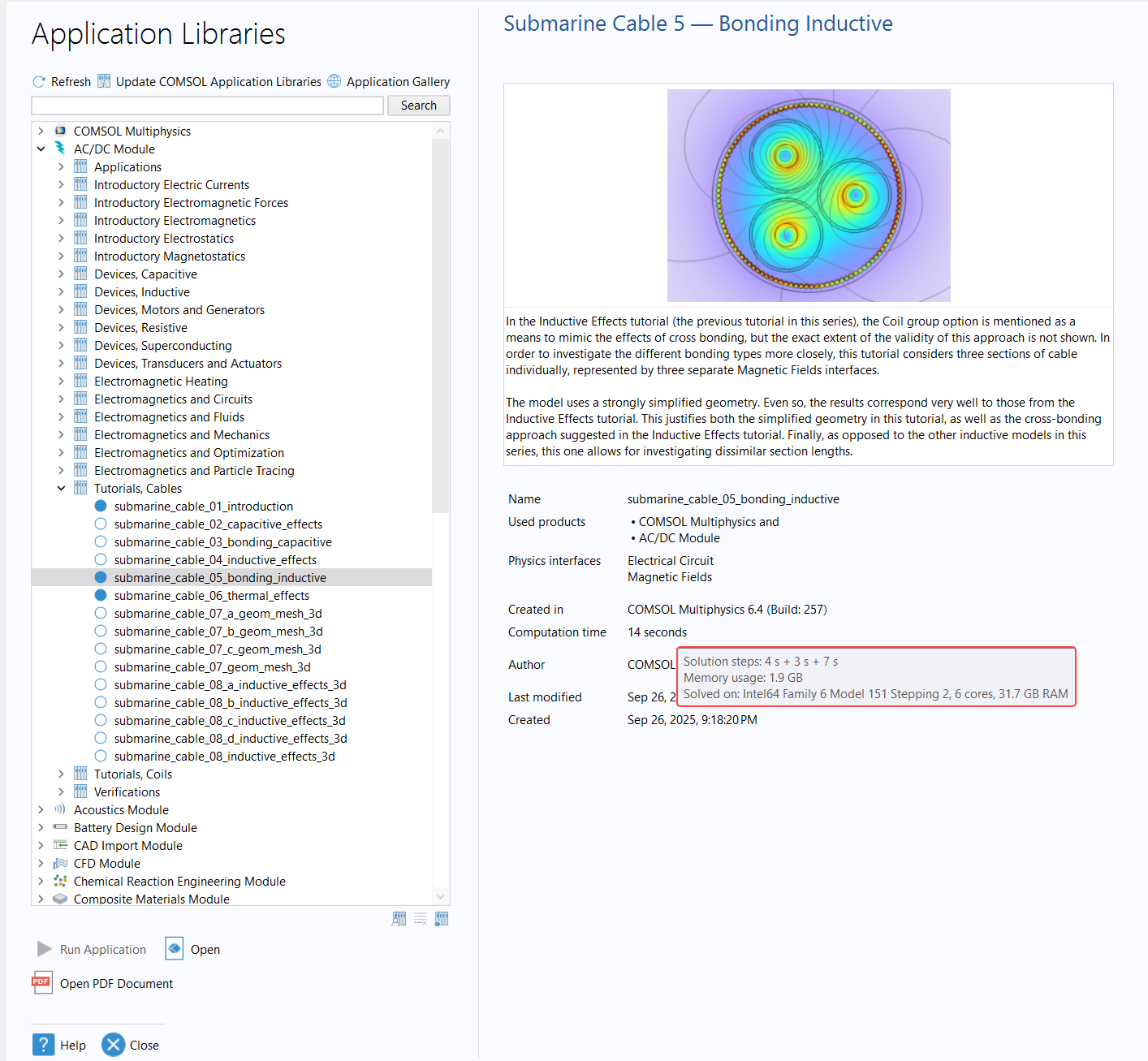
The Application Libraries window showing the branch of tutorial cable models available with the AC/DC Module. A submarine cable tutorial model is selected, with the computation time and the system it was computed on shown.
Filename Search
When using the Application Libraries, to search for a model file with a known name, enter @name: into the text field to define a filename search, and then enter the full name of the model after the colon. If you are unsure of the entirety of a filename, a partial name can also be searched using the wildcard asterisks before the term or after. For example, enter the search query as @name: *mixer* to view all files with the term mixer in the filename.
 The Application Libraries search results for filenames that contain mixer.
A search in the Application Libraries window for filenames that use the term mixer.
The Application Libraries search results for filenames that contain mixer.
A search in the Application Libraries window for filenames that use the term mixer.
Tag or Type Search
The files in the Application Libraries have been indexed to support searching for specific features. These features can be identified by their Tag or Type. The Tag and/or Type of a feature can be displayed in the model tree in the Model Builder workspace by selecting Model Tree Node Text (located under the Model Builder heading; see image below) and checking the Type and/or Tag options in the dropdown menu.
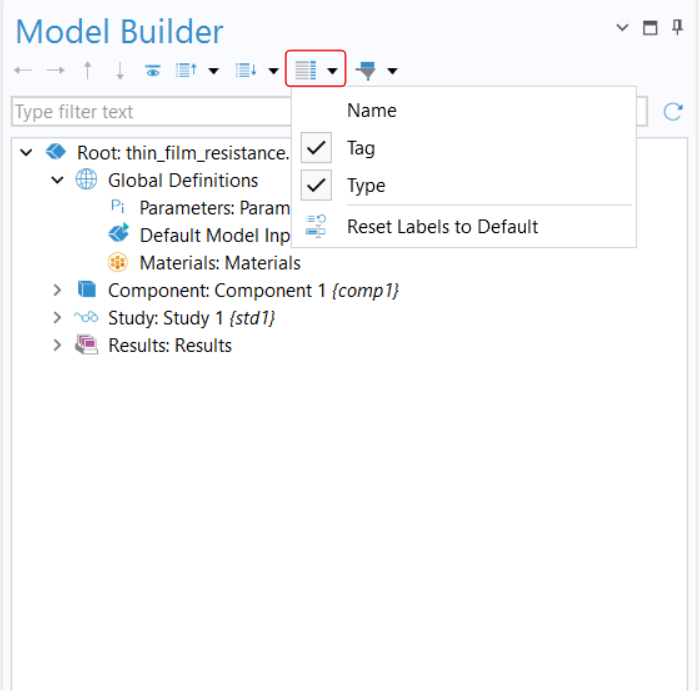
The Model Tree Node Text menu options for displaying the node Tag and Type.
Another option to determine the Tag of a specific node is to right-click a node of interest in the model tree and select Properties and Comments to open the Properties window. This window reveals the Label, Name, and Tag of the selected node. A Tag or Type search uses @tag: or @type:, followed by a physical term or identifier. For example, if you are interested in finding models that use a multigrid solver, enter the expression @type:multigrid in the search bar to view all the models in the Application Libraries that implement a multigrid solver in the solver configuration.
 Search results for multigrid solver type search with the Helical Static Mixer model selected in the Application Libraries window.
A Type search for a helical static mixer using a Multigrid solver.
Scope Search
To search within the nodes located in the model tree of each model or application file, the use of scope search parameters can be applied. Scope searches are used to efficiently filter models based on specific physical interfaces, meshing tools, or solvers. To find a model that uses a particular physics interface, start the search with @physics: and the physics interface identifier.
Physics interface identifiers can be found later on this page in the "Search Parameters and Identifiers Tags for Searching the Application Libraries" tables.
To give a search example, if you are interested in modeling with laminar flow, determine the physics identifier, spf, and enter the expression @physics:spf into the search bar. The results will display all the files that include laminar flow as one of the physics in the simulation. This type of search can also be extended to multiphysics models.
To find models that use the multiphysics coupling feature, enter the search parameter @multiphysics: and the physics interface identifier. For instance, to find examples using a multiphysics coupling with thermal expansion, enter @multiphysics:te. Other types of scopes can be searched in a similar manner to the scope search parameters, followed by the identifier. For example, physics-controlled or user-controlled meshes may require additional refinement and optimization to capture complex geometries. Finding model files that implement tools and techniques for such cases can be searched using the @mesh: search parameter and a feature identifier of interest. For example, to find model examples with a mesh refinement study, enter the search parameter @mesh:ref, and all the model files that use this tool for the simulation will be listed.
Any combination of tag, type, and scope searches can be entered into the search bar to create a highly tailored search. Such a search can be performed by entering each expression with a space in between each scope search parameter. To learn more about the search functionality of the Application Libraries, click the search bar and press F1 to open the "Searching the Application Libraries" section of the COMSOL documentation.
 UI of the Application Libraries showing the mesh refinement search scope results with the Boundary Layer Meshing — Adding Boundary Layers to an Imported Mesh model selected.
 The Application Libraries UI with three scope filters applied and the Fine Chemical Production in a Plate Reactor Model selected.
Mesh refinement scope search in the Application Libraries (left). Applying multiple filters for a search query, implementing the tag search (@tag) for a segregated solver, the mesh search (@mesh) to identify a swept mesh, and a physics search (@physics) for the transport of diluted species physical property (right).
Search Parameters and Identifier Tags for Searching the Application Libraries
See the tables below for some identifier tags that can be found in the software. Note that the tables do not include all of the tags available.
| Definitions | Geometry | Physics and Multiphysics |
|---|---|---|
Component Coupling
|
Primitives
Operations
|
AC/DC
Acoustics
Chemical Species
Electric Discharge
Fluid Flow
Heat Transfer
Optics
Plasma
Radio Frequency
Structural Mechanics
Semiconductor
|
| Mesh | Study | Results |
|---|---|---|
|
Generators
Operations
Selections
|
Study
|
Datasets
|
Searching the Application Libraries from the Documentation
The COMSOL documentation contains information and guides regarding the software, products and modules, and installation. The documentation can be accessed directly from the software under the Files tab by choosing Help and selecting Documentation or by clicking Ctrl and F1 to open the Documentation window. The documentation can also be opened in a web browser through the Help window by clicking the Show in External Browser button, in the upper-left corner of the Help window, or by going to doc.comsol.com. Additionally, the COMSOL documentation can be accessed at comsol.com/documentation or by navigating to the COMSOL website footer and selecting "Documentation" under the "Support and Services" heading.
The documentation can be searched by scope, such as "Product documentation", "Add-in libraries", or "App libraries". The search results can be sorted by "Product" or "Relevance". A keyword, feature, or string can be entered into the text field to search the documentation.
Let's consider an example of searching for model and application files that contain two components. The first step is to select the dropdown menu of the "Search scope" and select "Application libraries" in the upper-left corner of the webpage. The Application Libraries scope enables you to narrow the scope of your search to the model documentation, which enables you to view more information and step-by-step modeling instructions for files found in the Application Libraries. From there, you would select "Product" for the "Sort by" dropdown menu. To search for a particular phrase, enter the keywords in quotation marks to search the full term. For this example, we entered the expression "component 2" in the search bar, as shown below. The results display the keywords and phrases entered in the search bar highlighted in yellow, as can also be seen in the image below.
 The COMSOL Documentation UI result for a "component 2" search in the model documentation.
Searching the documentation for Application Libraries model files with two components. Note that the search scope, in the upper left, has been set to the Application Libraries, the sort by has been set to Product, and the string entered in the search field is "component 2".
Searching the Model Manager Demo Database
Located within the Model Manager is the Application Libraries Demo Database. The Demo Database is a local database that contains all the application files found in the Application Libraries. This database can be downloaded from the software under the File menu. Select Help, and click Download Demo Database for Model Manager. The Demo Database can also be downloaded from the Application Gallery with installation instructions.
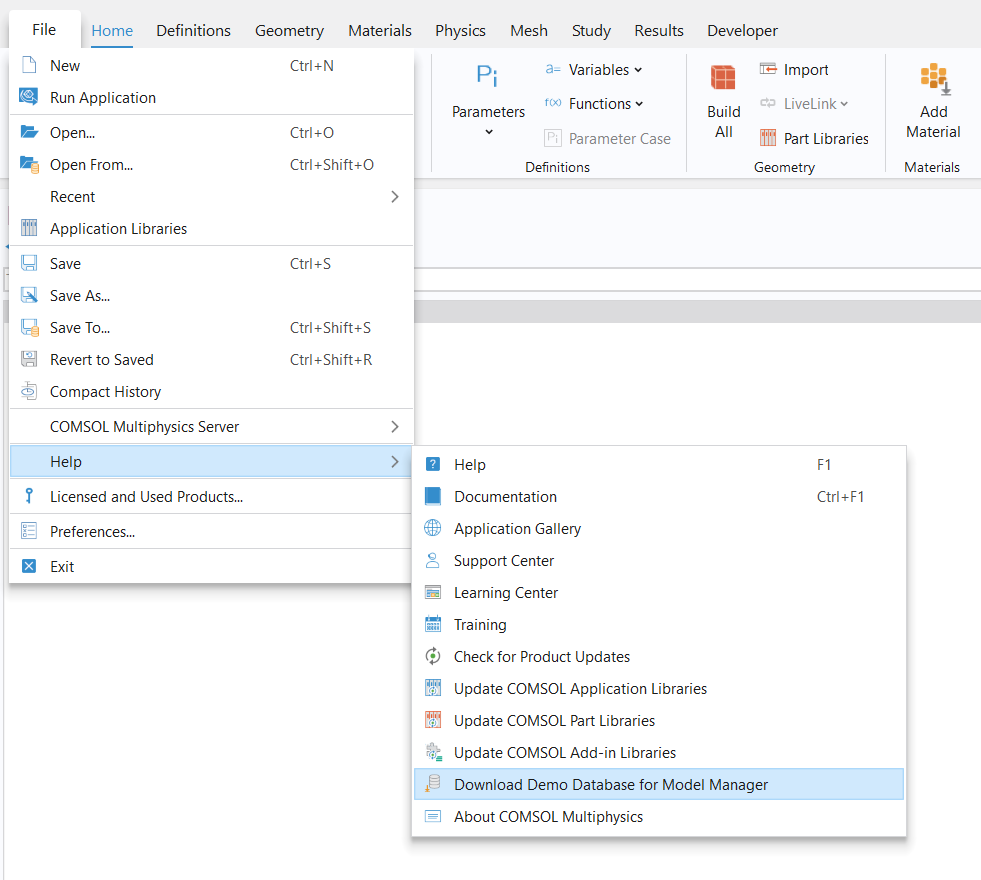
Installing the Demo Database for the Model Manager within COMSOL Multiphysics®.
To initiate a search in the Demo Database, enter a term in the text field, and the results will provide titles, descriptions, tags, and/or filenames that contain the exact match of the expression you entered. If you are unsure of the whole term you want to enter, adding a wildcard asterisk to the term will give you results that contain the entered term. To search for an expression that contains multiple terms as a sentence, enclose the term in quotations. To create specific search filters in the Application Library Demo Database, select Add Filter to view the available preset filter options, including but not limited to Parameter, Space Dimension, Physics, Node Properties, Description, and Tag.
Applying Search Filters
To find a model with a specific feature, you can apply a Node Type filter. This filter enables you to search by type, API type, and API class, with the option to Match all terms or to Match whole phrase to customize the filter. The type, API type, and API class can be identified by going to the Contents window and double-clicking on the node in the model tree. For example, if you are looking for a model that demonstrates fluid dynamics and heat transfer, select Add Filter > Node Type and enter "heat transfer in fluids" in the Type text field. Under the Options section, select "Match whole phrase" to give you results that only contain the whole sentence, and select OK to apply the filter.
Opening the Details dialog to identify the API class, API type, and Type labels.
 The Node Type filter pop up window.
Creating a Node Type filter for heat transfer in fluids.
With the known identifier tag of a function, physics interface, or solver, you can implement the Node Properties tag filter. Note that the Node Properties tag filter is different from the Tag filter immediately shown after selecting Add Filter. The Tag filter applies to the user-generated tags implemented to organize model files in a database. In this demo database, model files are tagged by the module or product, and the Node Properties tag filter applies to the node identifier tags embedded in the software.
 The Model Manager workspace with the location of the Node Properties Tag filter highlighted.
 The Model Manager workspace with the location of the Tag filer highlighted.
The Node Properties tag filter (left) and the Tag filter (right).
If you are interested in viewing tutorial models that demonstrate the use of a smoothed step function for studies that involve abrupt changes in physical quantities, application files that use step transitions to model step functions can be found using the Tag filter listed under Node Properties. The identifier tags can be found in this article's "Search Parameters and Identifier Tags for Searching the Application Libraries" table.
To use the Node Properties tag filter, you may need to append the integer 1 to the identifier to get the results you are looking for. Once you select the Node Properties tag filter, you will be prompted to enter a keyword. In this case, the keyword consists of the step function identifier, step, with the integer 1 appended: step1. To apply the filter, select OK. You will notice the automatically generated filter syntax is shown in the Filter query preview section, which is @node{@tag:step1}. These search queries can be entered directly into the search input field for quick searches. To generate search queries, you can click Ctrl and the space bar to initiate the autocompletion tool. The autocompletion tool helps you curate your search query by suggesting relevant search scopes to help you formulate an expression with the correct syntax in order to identify relevant model files.
Implementing a step function Node Properties Tag filter in the Model Manager.
To apply additional filters, repeat the process of clicking Add Filter and selecting a feature or keyword of interest. To find models that implement a parametric sweep, click the Study Step filter, select the Parametric Sweep checkbox, and click OK to apply.
 UI of the Model Manager with the Study Step filter pop up window and Parametric Sweep checked off.
The process for applying a Parametric Sweep study step filter in the Model Manager.
All applied filters will be listed below the search bar. Each filter can be selected to either edit, remove, or disable. To remove all the filters and start a new search, click the Reset button, located above the text field. Another advantage of using the Model Manager to search for Application Libraries files is the ability to return to prior searches you have conducted by selecting Search History located to the left of the Reset button. Implementing these filters in the Model Manager will enable you to create tailored searches of, for example, filenames or the API value in the Settings window of a model tree node within a model file.
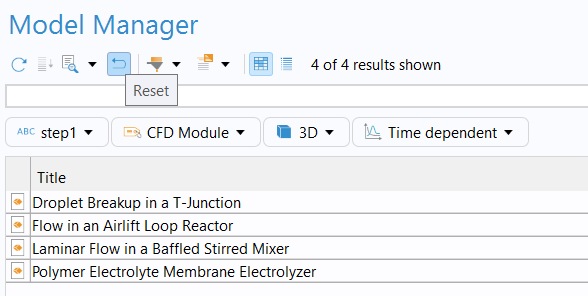
Location of the Reset option in the Model Manager.
Further Learning
- Blog posts
- Learning Center
- Documentation
请提交与此页面相关的反馈,或点击此处联系技术支持。


